Appearance
Installing the App
Installing the app is recommended but not required! Tender will always just work in your browser. Here's how to install Tender as an app:
First, launch the app.
On Your Phone or Tablet
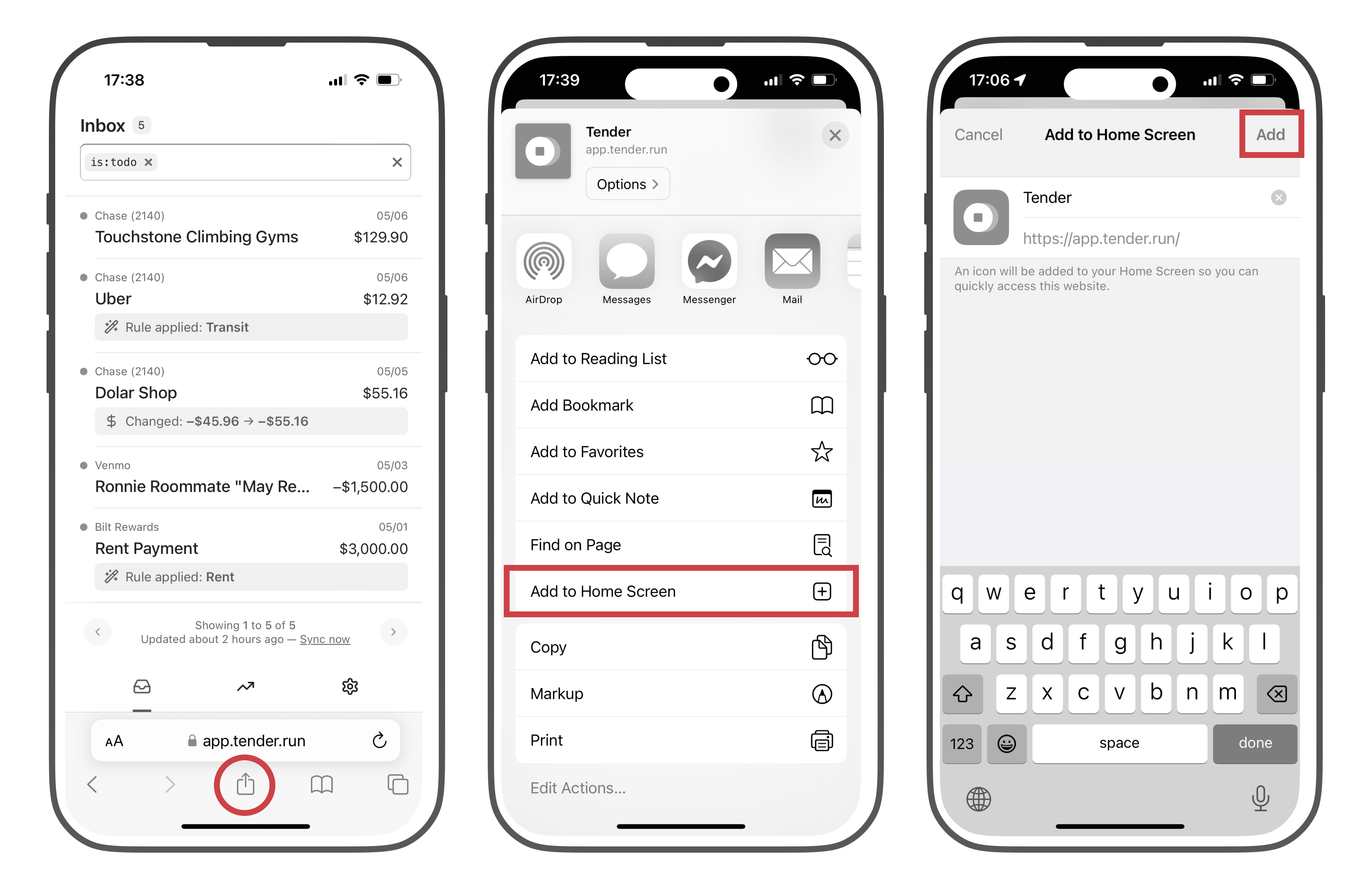
- iOS Safari: Tap
 at the tool bar then
 Add to Home Screen - iOS Chrome: Tap at the address bar then
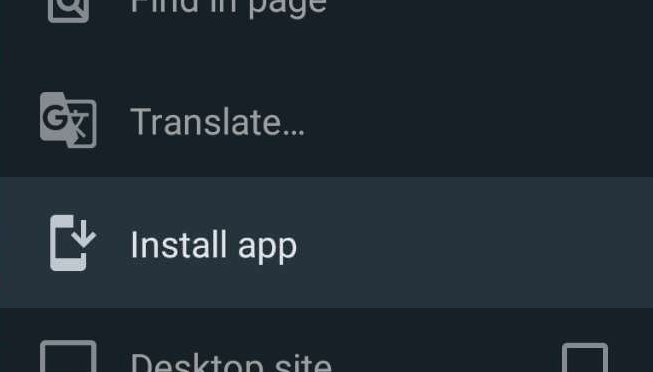
Add to Home Screen - Android: Tap
 then
then InstallorAdd to Home Screen
On Desktop
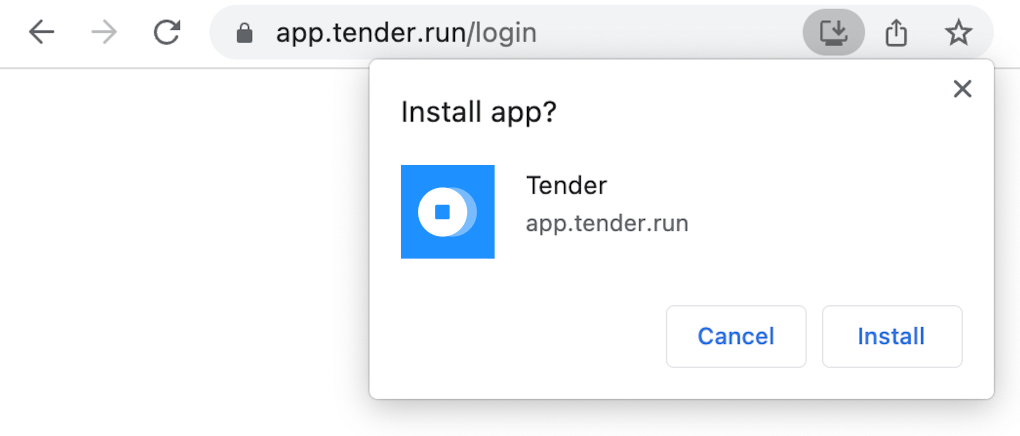
- Google Chrome: Click
 at the top right of the address bar
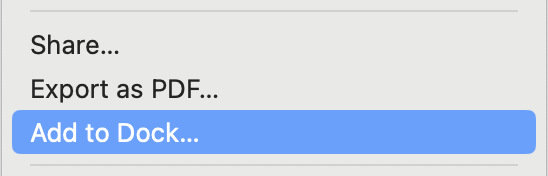
 - Safari: Click
Filein the menu bar thenAdd to Dock - Microsoft Edge: Click
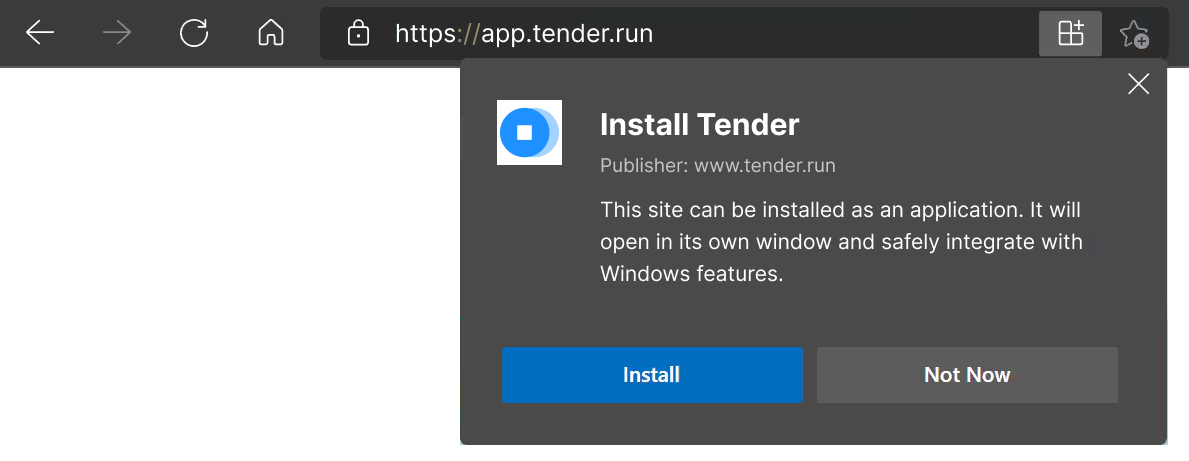
 at the top right of the address bar
That's it! Now you've got Tender right on your home screen as an app.
Do all browsers support installing the app?
Older browsers do not support installing the app. Currently, installing web apps is supported in all major browsers, including:
- Safari and Chrome on macOS
- Safari and Chrome on iOS/iPadOS
- Chrome and Firefox on Android
- Chrome and Edge on Windows 7+
If you have any other questions about installing the Tender app, please reach out to support@tender.run.
Offline mode
Tender supports offline mode out of the box.
Any changes made while offline are synced the next time you're online. Offline mode works on modern browsers, regardless of whether or not you install the app.
Updating Tender
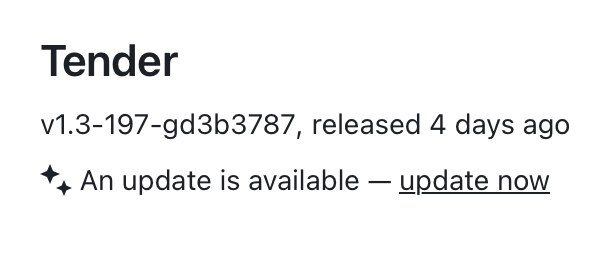
Tender periodically updates itself in the background. If you want to update your app immediately, you can do so by going to Settings, then About and clicking Update now:
Installation Guides
iOS Safari
Click at the tool bar then Add to Home Screen
iOS Chrome
Click at the address bar then Add to Home Screen
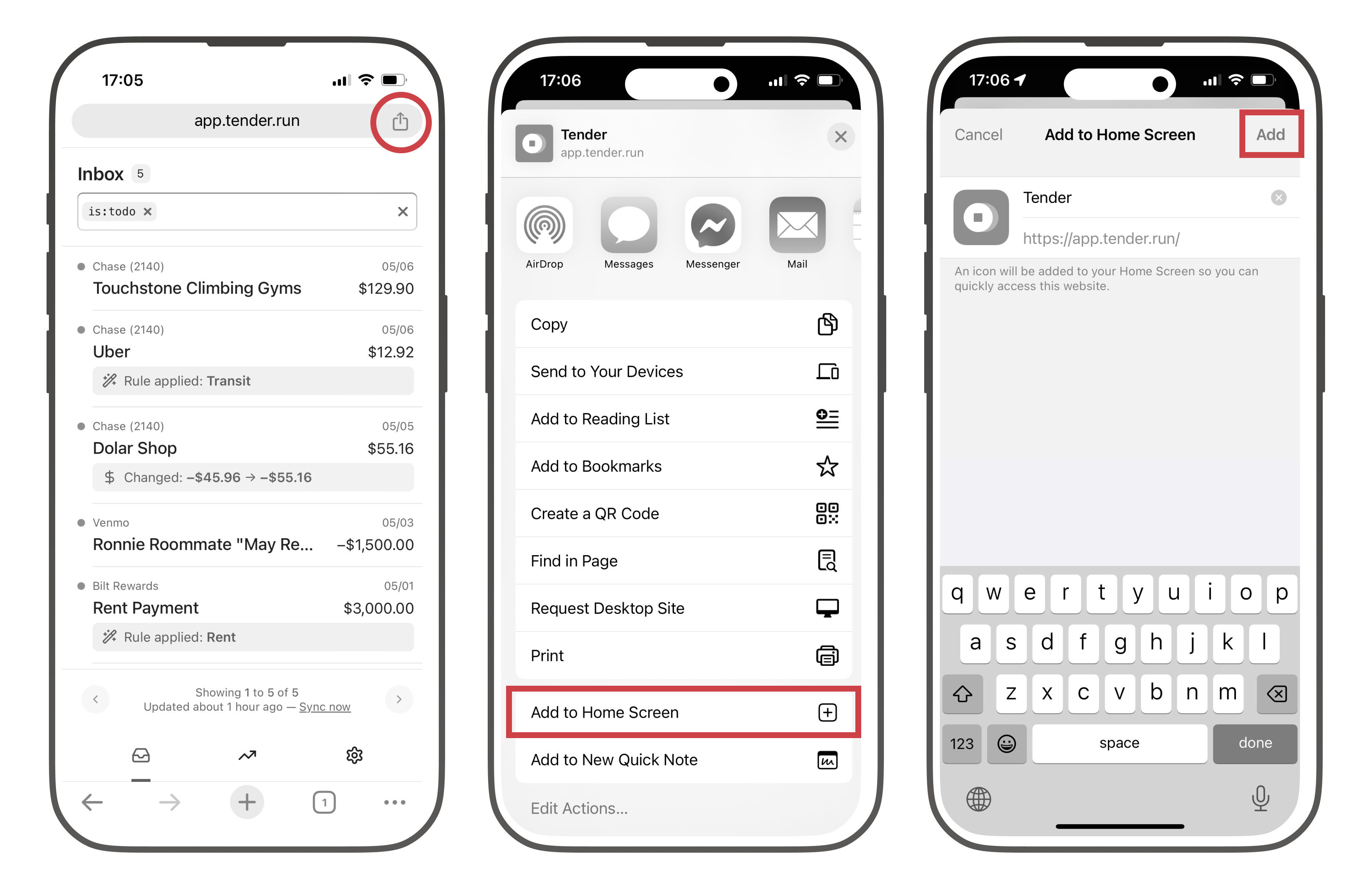
Android
On Android, this feature is called Install, Install app, or Add to Home Screen in the menu:
Google Chrome
On desktop Chrome, click at the top right of the address bar.
Safari
On macOS Sonoma and above, click File in the menu bar and then Add to Dock:
Microsoft Edge
On Microsoft Edge, click at the top right of the address bar